The Free Performance Upgrade Hiding in Your Motherboard That Nobody Talks About
You've swapped thermal paste. You've reseated RAM. You've argued with strangers on Reddit about airflow direction. But there's a solid chance you've never once opened your motherboard manufacturer's website and checked whether your BIOS is current. That's a mistake — and depending on your hardware, it might be costing you real, measurable performance every single time you boot up.
Welcome to the most unsexy corner of PC optimization: firmware maintenance. Pull up a chair. This one's actually worth your time.
What Even Is BIOS, and Why Should You Care?
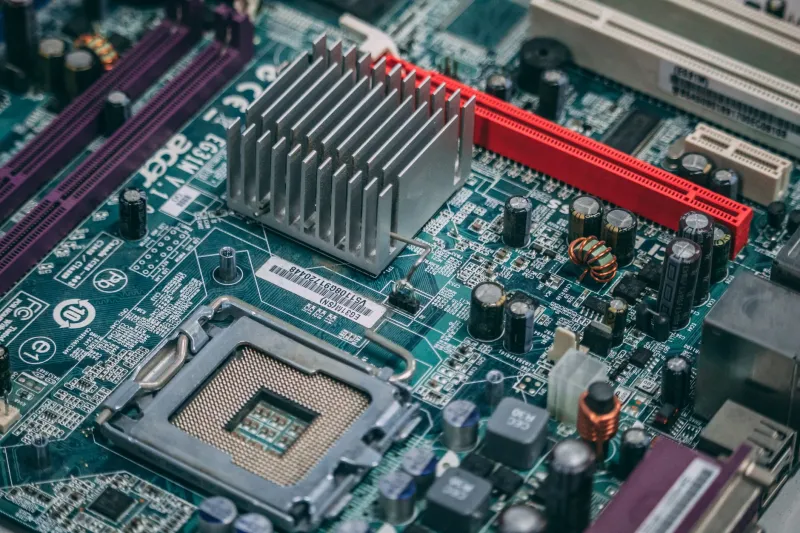
BIOS — or on modern boards, UEFI (Unified Extensible Firmware Interface, if you want to sound smart at parties) — is the foundational software baked into your motherboard. It's the first thing that runs when you hit the power button, before Windows, before your RGB lighting controller, before anything. It tells your system how to talk to your CPU, RAM, storage, and every other component plugged into it.
Here's the thing manufacturers don't advertise loudly: that firmware ships with bugs. Sometimes big ones. And they keep fixing those bugs, tuning CPU compatibility, improving memory training algorithms, and patching security vulnerabilities — long after your board left the factory floor. Every update they push is sitting on their website, free, waiting for you to grab it. Most people never do.
That's basically leaving money — or in this case, frames per second — on the table.
The Red Flags That Your BIOS Is Running on Fumes
Not sure if your firmware needs attention? Here are the signs that your motherboard is quietly phoning it in:
Your RAM isn't hitting its rated speed. If you bought a 6000 MHz DDR5 kit and your system is defaulting to 4800 MHz, a stale BIOS is a prime suspect. Memory compatibility and EXPO/XMP profile support improve dramatically with firmware updates.
You just dropped in a new CPU and things feel... off. Newer processors often require BIOS updates to function correctly on older boards. Without the right microcode, your shiny new chip might not boost to its full potential — or might not post at all.
Your system crashes or randomly restarts under load. Stability issues are frequently traced back to outdated firmware. Manufacturers patch power delivery behavior, thermal throttling logic, and voltage curves over time.
You're seeing inconsistent benchmark results. If your scores are all over the place between runs, your board's firmware might be mismanaging boost states or core scheduling.
Any of these sound familiar? Yeah. Time to update.
How Outdated Can We Be Talking?
Pretty outdated, honestly. We've seen builders rocking BIOS versions from 2021 on boards that have had a dozen updates since. It's not negligence — it's just that nobody tells you to check. Your operating system doesn't nag you about it. Your motherboard doesn't send you a push notification. It just quietly runs old code while your CPU shrugs and does its best.
For Intel 12th and 13th gen users especially, this matters a lot. The instability issues that plagued high-end Intel chips had firmware components, and several board manufacturers pushed critical BIOS patches to address power limits and voltage behavior. If you built a system in that era and haven't updated since, you may literally be running a board that's been misbehaving for over a year.
AMD users aren't off the hook either. AGESA (the AMD firmware framework) updates have historically delivered meaningful improvements to Ryzen memory compatibility, Precision Boost behavior, and overall system responsiveness. Some AM5 early adopters saw double-digit percentage improvements in certain workloads just by staying current.
The Update Process Is Intimidating Until It Isn't
Here's the part that scares people: actually doing the update. The fear is understandable. "Flashing BIOS" sounds like the kind of thing that could brick your motherboard if you sneeze wrong. And yes, in the early 2000s, it kind of was. Today? It's dramatically safer, and most major manufacturers have made the process genuinely approachable.
Here's the general flow, though you should always reference your specific motherboard's manual:
-
Find your current BIOS version. Hit Windows + R, type
msinfo32, and look for "BIOS Version/Date" in the System Information panel. -
Head to your manufacturer's support page. ASUS, MSI, Gigabyte, and ASRock all have dedicated support sections where you can search your exact board model and download the latest firmware.
-
Read the release notes. This is actually interesting stuff. You'll see exactly what was fixed, what was improved, and whether there are any special instructions for your update path.
-
Use the built-in flashing tool. Almost every modern board has a utility inside the BIOS itself — ASUS calls it EZ Flash, MSI has M-Flash, Gigabyte uses Q-Flash. You drop the update file on a FAT32-formatted USB drive, boot into BIOS, and let the tool handle the rest.
-
Don't touch anything until it's done. Seriously. Walk away. Get a snack. The process takes a few minutes and the cardinal rule is: don't cut power mid-flash.
Some high-end boards even support "BIOS Flashback" — a feature that lets you update firmware without a CPU or RAM installed, which is clutch if you're upgrading to a new processor that your current BIOS doesn't even recognize.
What Kind of Gains Are We Actually Talking About?
This varies wildly by platform and how stale your firmware is, but the numbers can be genuinely surprising. Users on AMD platforms who updated from launch BIOS to current AGESA revisions have reported memory latency improvements of 5-10 nanoseconds, which translates to real-world gaming performance bumps. CPU boosting behavior improvements have pushed effective clock speeds higher without any manual overclocking.
On Intel platforms, corrected power management behavior has helped some chips hit their intended boost clocks more consistently — which can represent a 5-15% uplift in lightly-threaded workloads like gaming. That's the kind of gain people spend $150 on aftermarket coolers chasing.
The best part? It costs exactly zero dollars. No new hardware. No exotic cooling. Just a USB drive, fifteen minutes, and the willingness to visit a support page.
Make It a Habit, Not a One-Time Fix
BIOS updates aren't a once-and-done situation. Manufacturers continue releasing updates throughout a platform's lifecycle, and checking every three to six months is a reasonable cadence for most builders. You don't need to chase every release obsessively — if your system is stable and you're not introducing new hardware, you can afford to be selective. But if you're adding a new CPU, upgrading RAM, or troubleshooting weirdness, firmware should be your first stop.
Think of it like changing the oil in your car. Boring? Absolutely. The kind of thing you'd rather not think about? Sure. But skip it long enough and you'll feel it in performance — and eventually in your wallet.
Your motherboard has been working hard. The least you can do is keep its software current. Peel back the settings menu, grab that update, and let your rig finally run the way it was supposed to.